> ## Documentation Index
> Fetch the complete documentation index at: https://docs.truflow.ai/llms.txt
> Use this file to discover all available pages before exploring further.
# Inboxes
Inboxes serve as the central location for viewing and managing all your conversations related activities. Whenever you add a new phone number or integrate a widget, a dedicated inbox is automatically created. Each inbox displays all the call logs associated with that specific phone number or widget, ensuring that your call information is organized and easily accessible.
 ## Key Features
* **Personalize inbox icons and names**
* **Apply filters and search easily**
* **Add tags to call entries**
* **Switch between conversation or table views**
## Conversation View
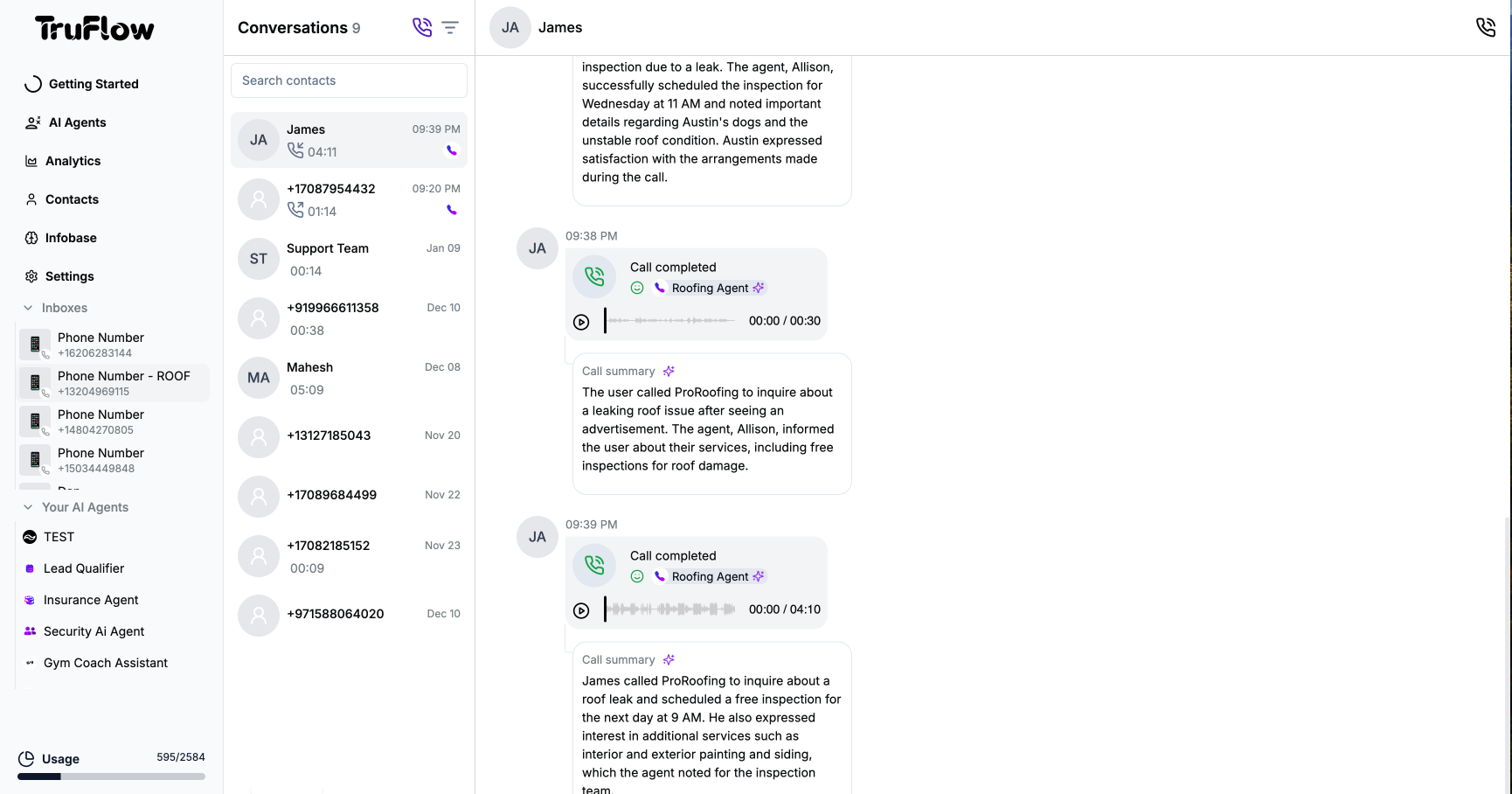
In Conversation View, you see your call logs presented in a chat-like format. Rather than displaying each call as an isolated entry, the system groups conversations by contact. This means if you select a particular contact from the list on the left, you will see all past conversations (calls) with that contact in a single, scrollable screen. As you scroll up, older conversation entries load, providing a comprehensive historical view.
### What You Can Do in Conversation View
* **See All Interactions at a Glance:**\
Instead of sorting through individual call entries, get a complete conversation history for a contact in one place.
* **View Call Details:**\
For each call in the conversation, you can:
* Check a brief summary
* Listen to the call recording
* View and add tags to categorize the call
* Click the **"i"** (information) button to see more in-depth details about the call
This format is especially helpful when you need context. For instance, if you're following up on a support inquiry or need to understand the history of a customer's past conversations, Conversation View provides that narrative overview.
## Table View
If you prefer a more traditional list format, switch to Table View. In this mode, every call is displayed as an individual entry in a tabular layout. This view is ideal for users who want a quick overview of all calls without the context of a conversation thread.
### Features of Table View
* **Granular Control:**\
Each call is listed separately, making it easy to sort, filter, and locate specific call entries by their properties.
* **Detailed Inspection:**\
Clicking on any call entry provides you with the full set of details for that particular interaction, similar to the Conversation View, but focused on that single event.
## Switching Between Views
You can switch between Conversation View and Table View with just a click:
* **From Conversation View to Table View:**\
Choose this when you need to quickly scan multiple calls without the extra context.
* **From Table View to Conversation View:**\
Switch back when you need a storyline-like history for a specific contact.
## Key Features
* **Personalize inbox icons and names**
* **Apply filters and search easily**
* **Add tags to call entries**
* **Switch between conversation or table views**
## Conversation View
In Conversation View, you see your call logs presented in a chat-like format. Rather than displaying each call as an isolated entry, the system groups conversations by contact. This means if you select a particular contact from the list on the left, you will see all past conversations (calls) with that contact in a single, scrollable screen. As you scroll up, older conversation entries load, providing a comprehensive historical view.
### What You Can Do in Conversation View
* **See All Interactions at a Glance:**\
Instead of sorting through individual call entries, get a complete conversation history for a contact in one place.
* **View Call Details:**\
For each call in the conversation, you can:
* Check a brief summary
* Listen to the call recording
* View and add tags to categorize the call
* Click the **"i"** (information) button to see more in-depth details about the call
This format is especially helpful when you need context. For instance, if you're following up on a support inquiry or need to understand the history of a customer's past conversations, Conversation View provides that narrative overview.
## Table View
If you prefer a more traditional list format, switch to Table View. In this mode, every call is displayed as an individual entry in a tabular layout. This view is ideal for users who want a quick overview of all calls without the context of a conversation thread.
### Features of Table View
* **Granular Control:**\
Each call is listed separately, making it easy to sort, filter, and locate specific call entries by their properties.
* **Detailed Inspection:**\
Clicking on any call entry provides you with the full set of details for that particular interaction, similar to the Conversation View, but focused on that single event.
## Switching Between Views
You can switch between Conversation View and Table View with just a click:
* **From Conversation View to Table View:**\
Choose this when you need to quickly scan multiple calls without the extra context.
* **From Table View to Conversation View:**\
Switch back when you need a storyline-like history for a specific contact.